

Login & Set Up Your Account
1. Logging In via Email Invitation
Watch the video tutorial below, or follow the step-by-step guide.
Preimage Login Tutorial
Step-by-step Guide
-
Check your inbox for an invitation email from Preimage.
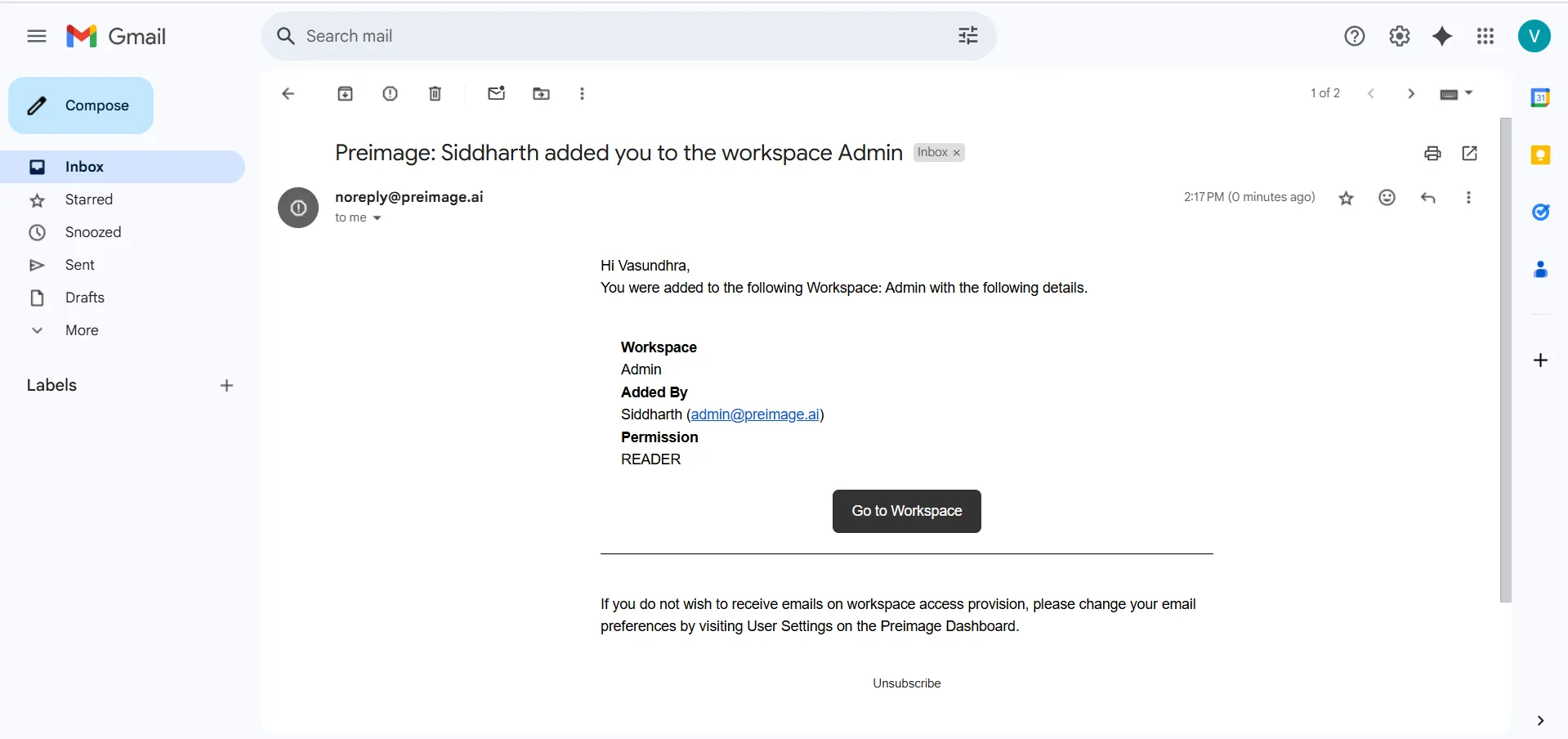
-
Click the “Go to Workspace” button.
-
You’ll be redirected to the Preimage Web App. Enter your credentials to log in.
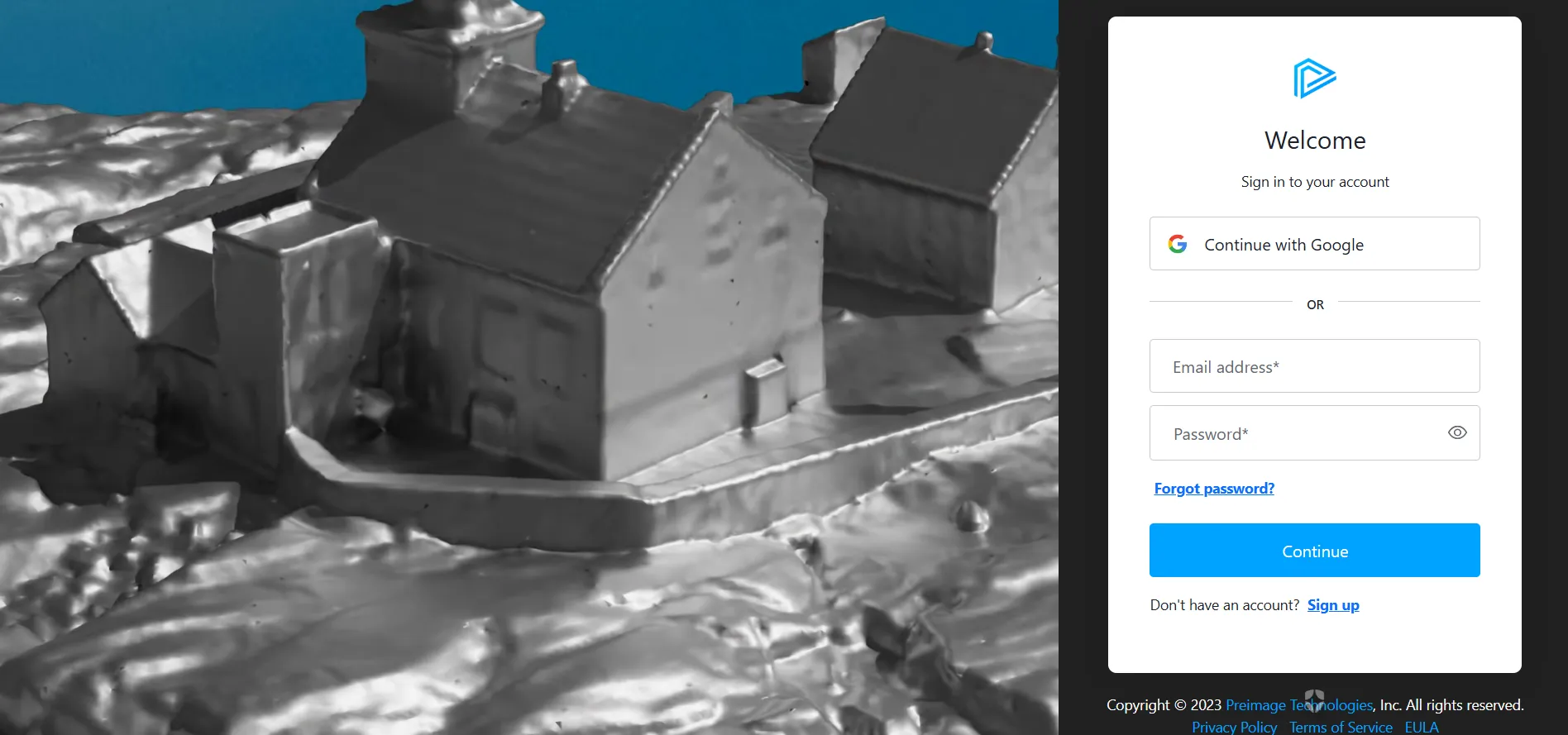
2. Signing Up as the First User
Watch the video tutorial below, or follow the step-by-step guide.
Preimage Sign Up Tutorial
Step-by-step Guide
-
Go to app.preimage.ai and click “Sign Up.”
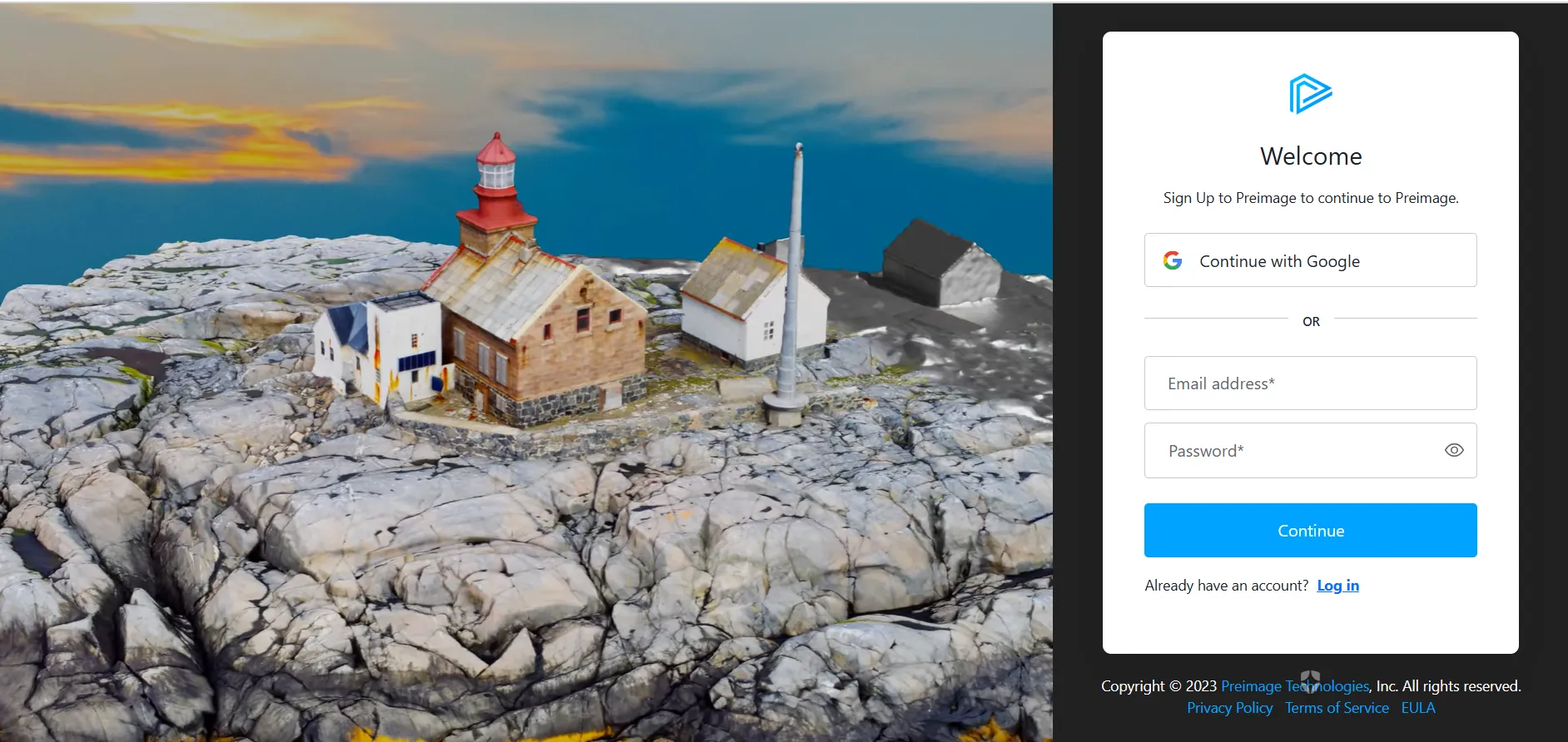
-
Enter the following details:
- Email Address
- Full Name
- Phone Number
- Organization Name
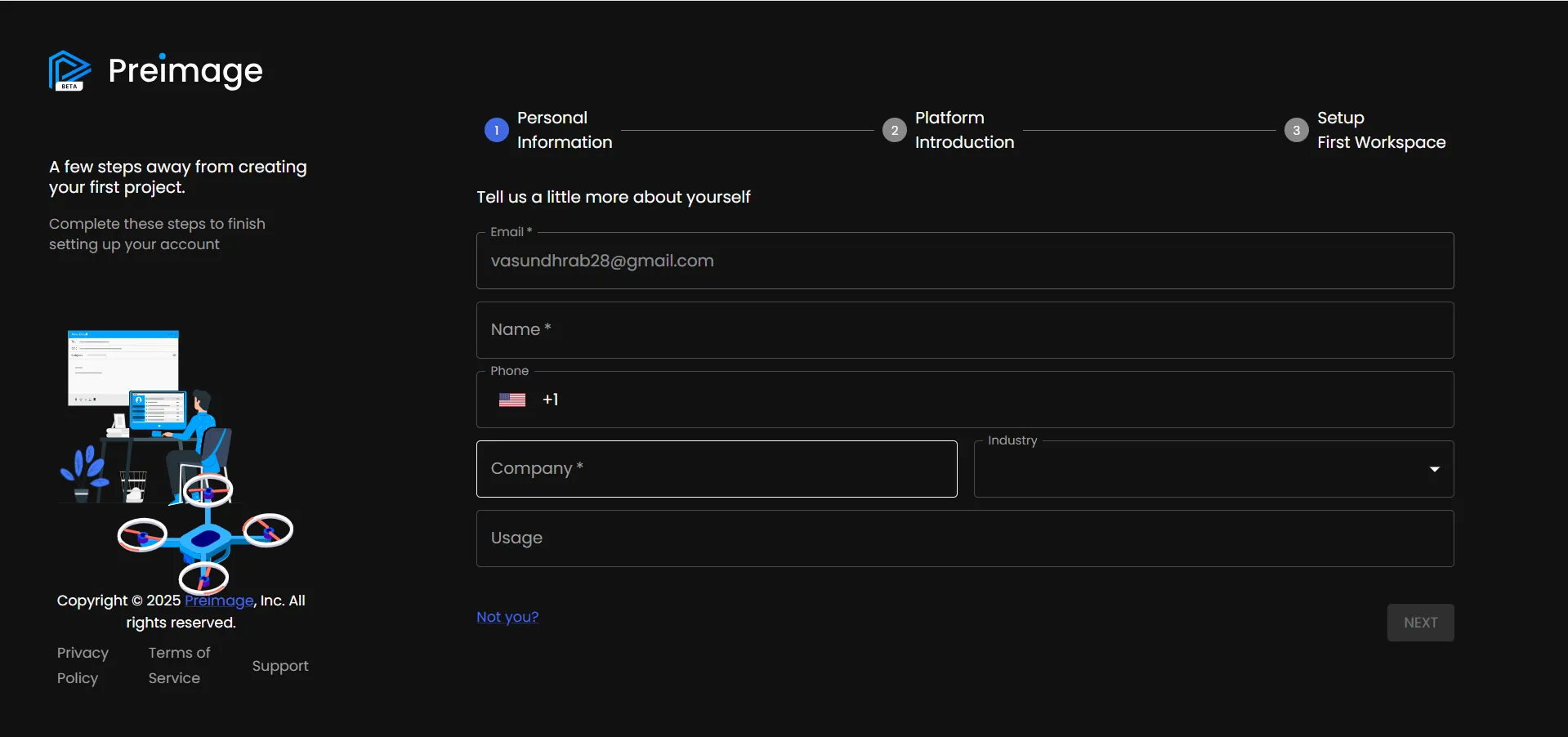
-
Click “Next.”
3. After Signing Up
-
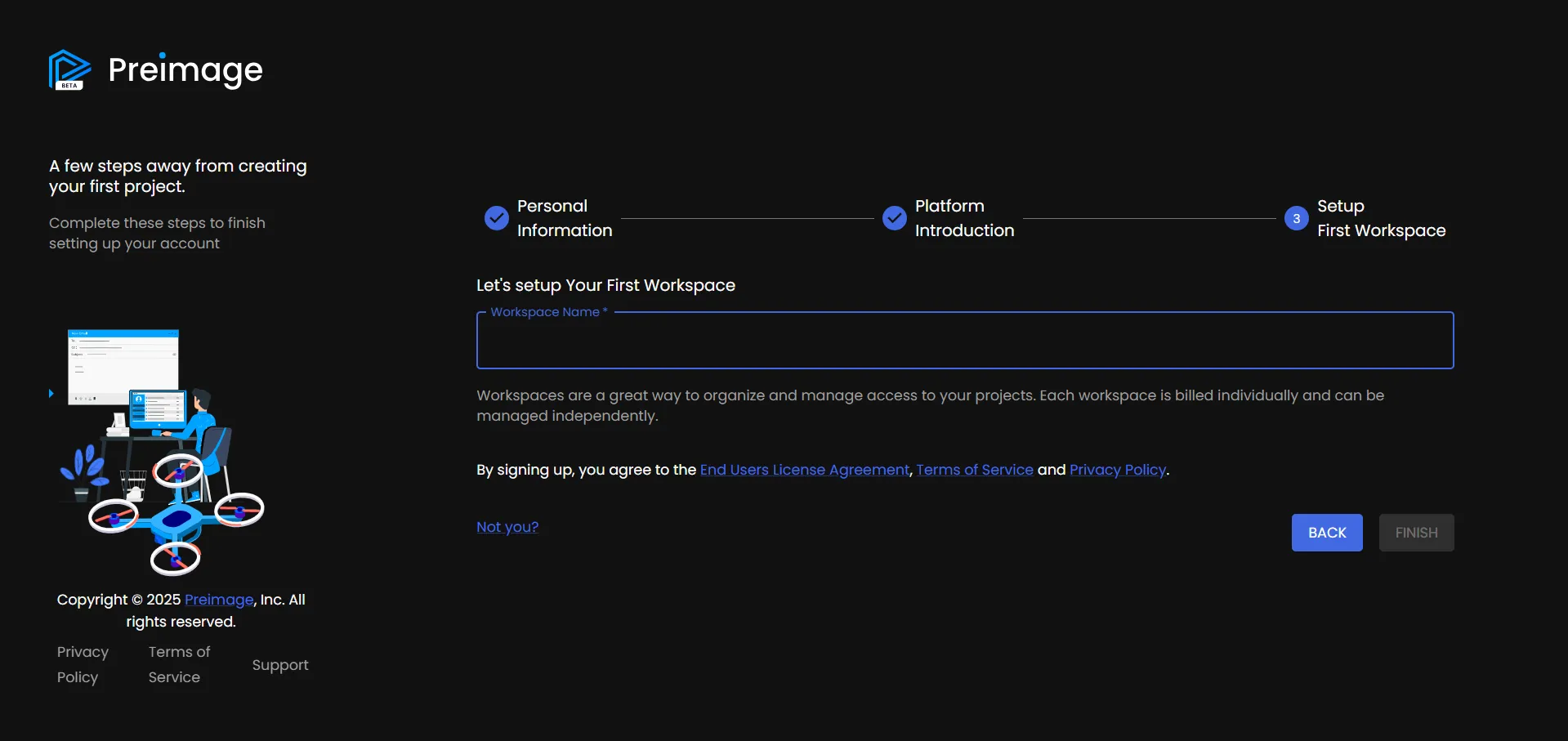
Enter a workspace name for your organization.
-
Click Finish, and your workspace will be automatically created.
Next, create a project and add your first scan.
Need Help?
If you run into issues during login or sign-up, check the following:
- Use a modern browser (Chrome recommended).
- Make sure your internet connection is stable.
- Look in your spam/junk folder for the invitation email.
Still stuck? Reach us at support@preimage.ai.