

Getting Started with the Preimage Mobile App
The Preimage Mobile App lets you connect your 360° camera, record your site, upload scans, and manage site information directly from your phone.
This guide introduces the app, how to sign in, and where to find its main features.
Install the Android app
Download Preimage by Preimage AI on Google Play.
The app is a companion for Insta360 X3, X4, X5, and ONE RS cameras. Charge the camera and phone, check storage, and allow the connection permissions requested by the app.
Getting Started
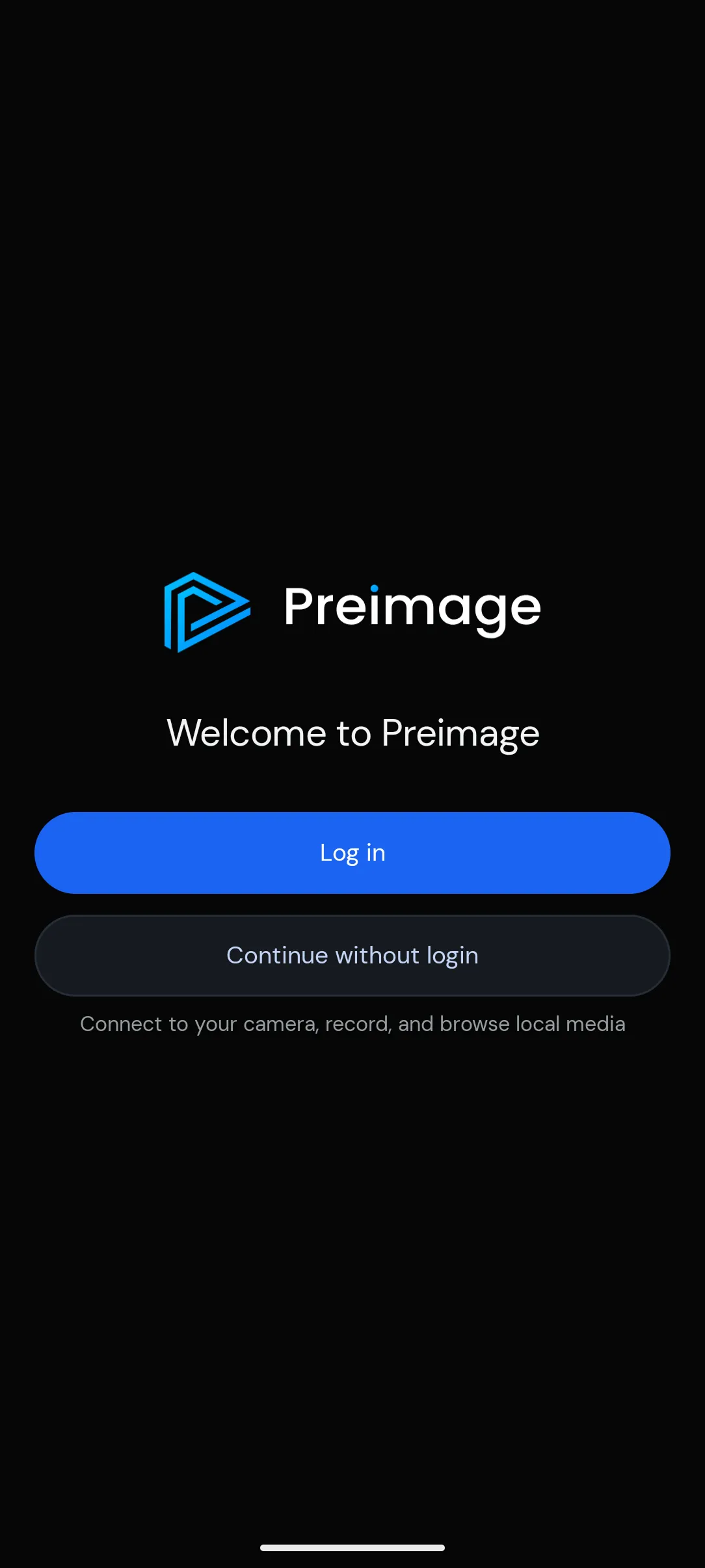
When you first open the Preimage app, you can choose to Log in or Continue without login.
Logging In
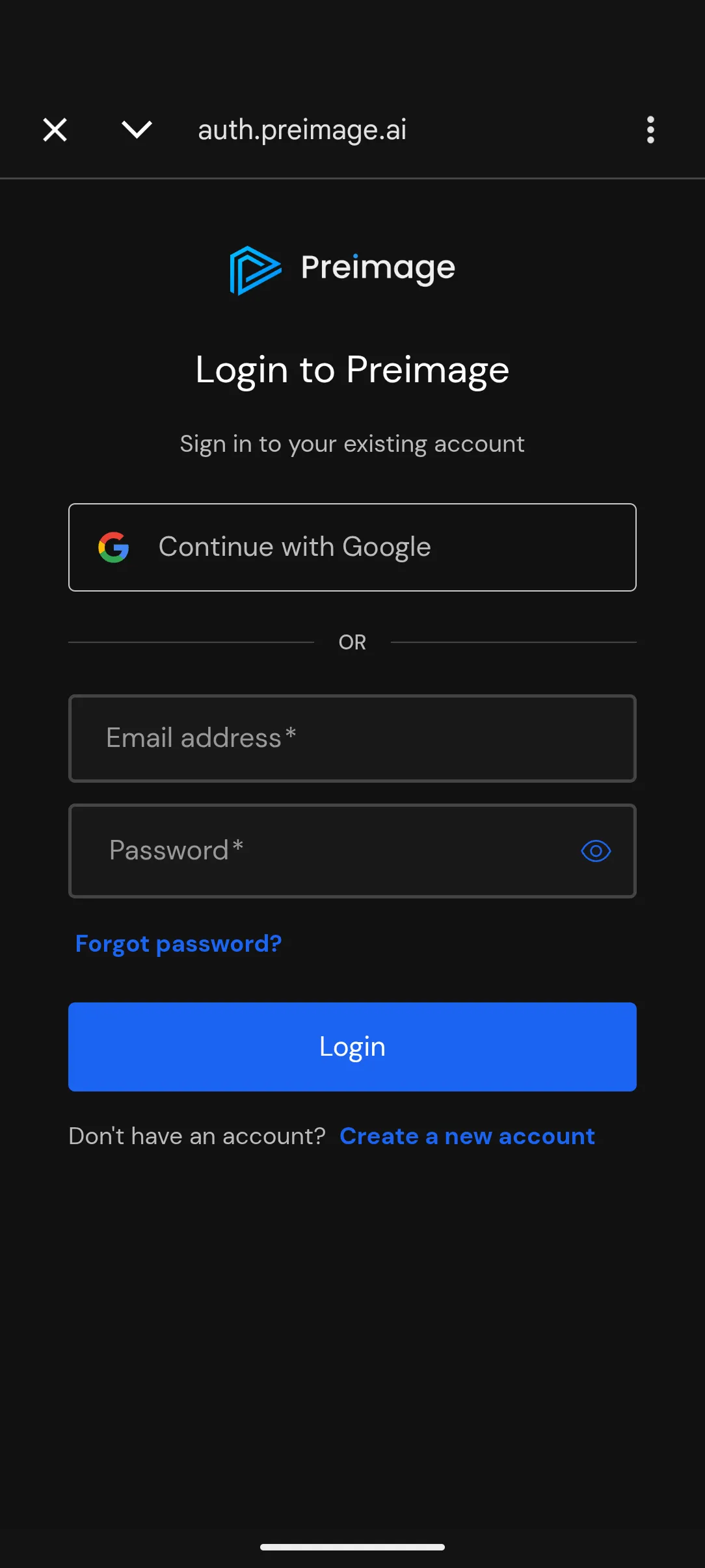
To access your existing workspaces, projects, and scans, you’ll need to log in to your Preimage account.
- Tap Log in on the welcome screen.
- Sign in using your email address and password, or select Continue with Google.
- Once logged in, select the workspace you want to work in.
If you don’t have an account, select Create a new account on the login page.
Continuing Without Login
You can also select Continue without login to use the app in Offline Mode.
This allows you to connect your camera, capture recordings, and access files saved on your phone without signing in.
To access your workspaces, projects, and online scan creation, you’ll need to log in.
Understanding the App Interface
The bottom navigation bar provides access to the main sections of the app.
- Home: Access your workspaces, projects, and scans.
- Gallery: View recordings and files saved on your phone.
- Capture: Connect your camera and record your site.
- Annotations: Create and manage site observations.
- Account: Access your profile and app settings.
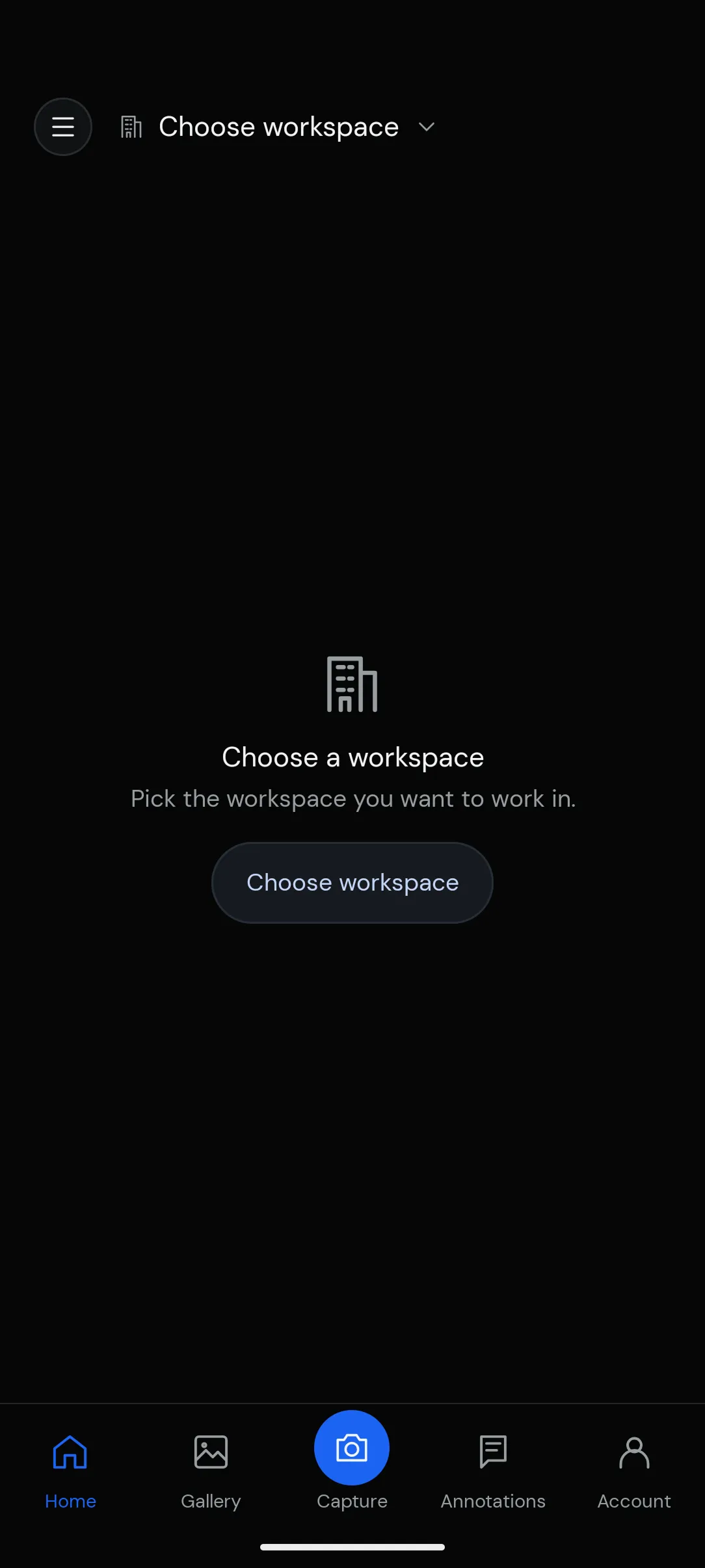
In Offline Mode, only Gallery, Capture, and Account are available.
Selecting a Workspace
After logging in, you’ll be asked to select a workspace.
Tap Choose workspace and select the workspace you want to access.
Once selected, you can view its projects and scans from the Home screen. You can also switch workspaces using the selector at the top of the Home screen.