

Creating and Managing Annotations
Annotations allow you to add notes, report issues, and assign tasks to specific locations within your scan. Each annotation is linked to a location in the Viewer, making it easier to review and manage site observations.
Creating an Annotation
Click the Annotation icon in the bottom toolbar and select the location in your scan where you want to add a note.
The Info Panel opens on the right, showing a snapshot of the selected location and options for adding annotation details.
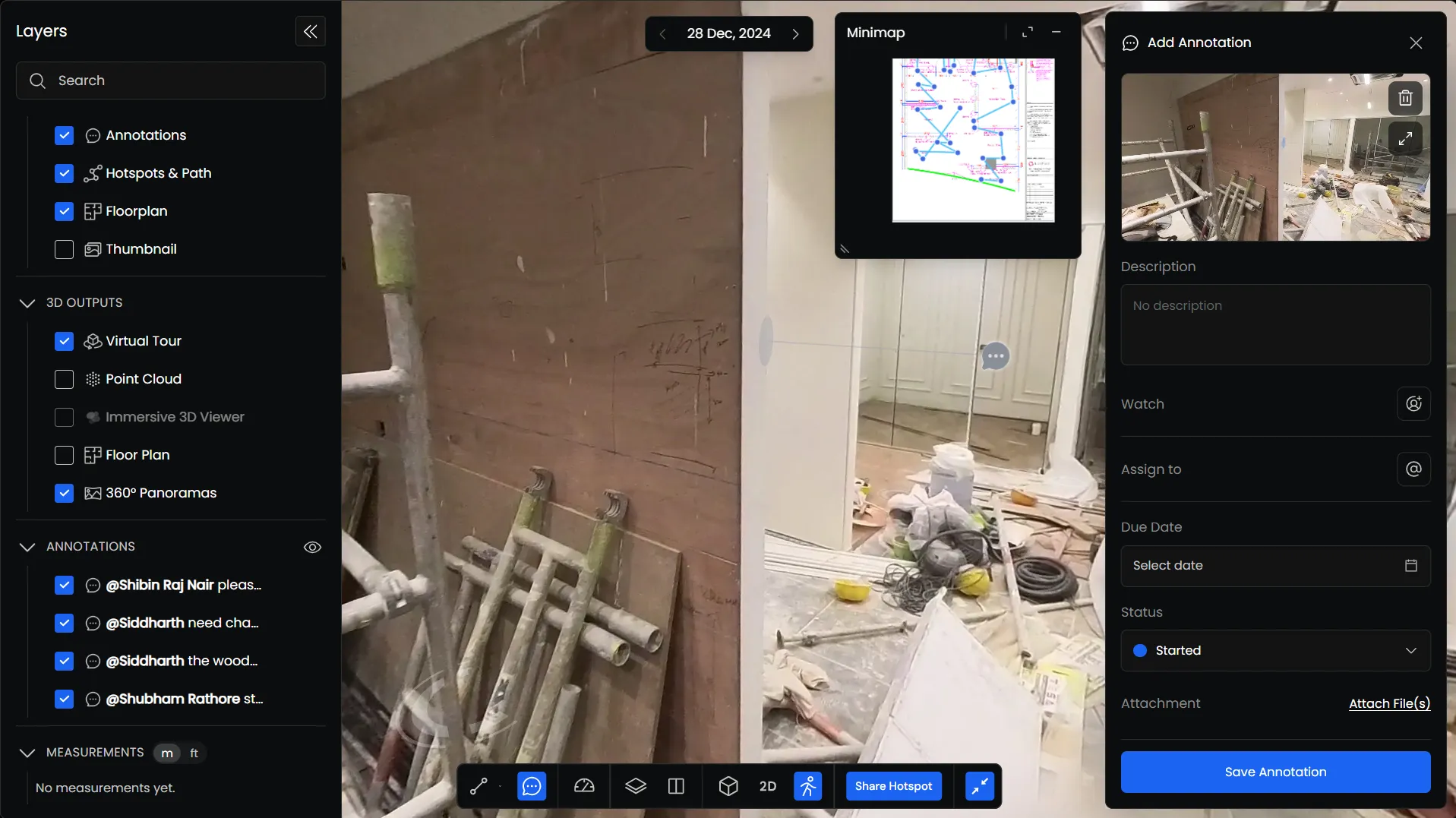
You can add the following information:
- Description: Add details about the observation or issue.
- Watchers: Add team members who need to follow updates to the annotation.
- Tags: Categorize annotations using relevant tags.
- Assign To: Assign the annotation to one or more team members.
- Status: Set the current status of the annotation.
- Attachments: Add supporting documents, images, or other files.
Once you’ve added the required information, save the annotation.
Viewing and Managing Annotations
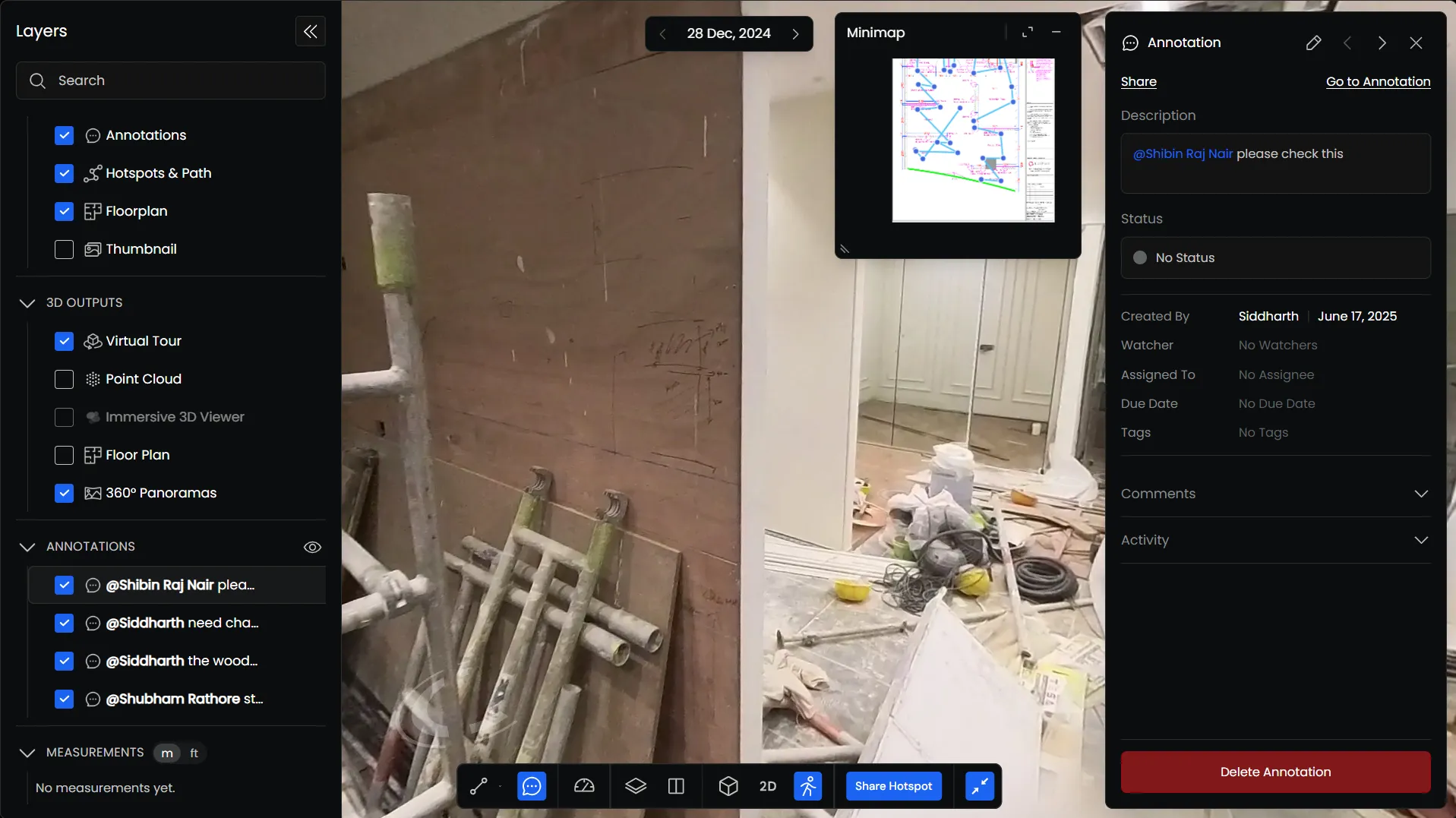
You can select an existing annotation to open its details in the Info Panel.
The panel displays the annotation’s information, attachments, and the location associated with it.
You can update the description, change the status, manage assignees and watchers, or add attachments.
Annotations can also be deleted when they are no longer needed.
Showing or Hiding Annotations
Annotations are listed under Annotations in the Layers panel.
You can show or hide individual annotations using the checkboxes beside them. You can also hide all annotations using the visibility control in the section header.
Hiding annotations does not delete them.
Managing Annotations from the Annotations Notes Page
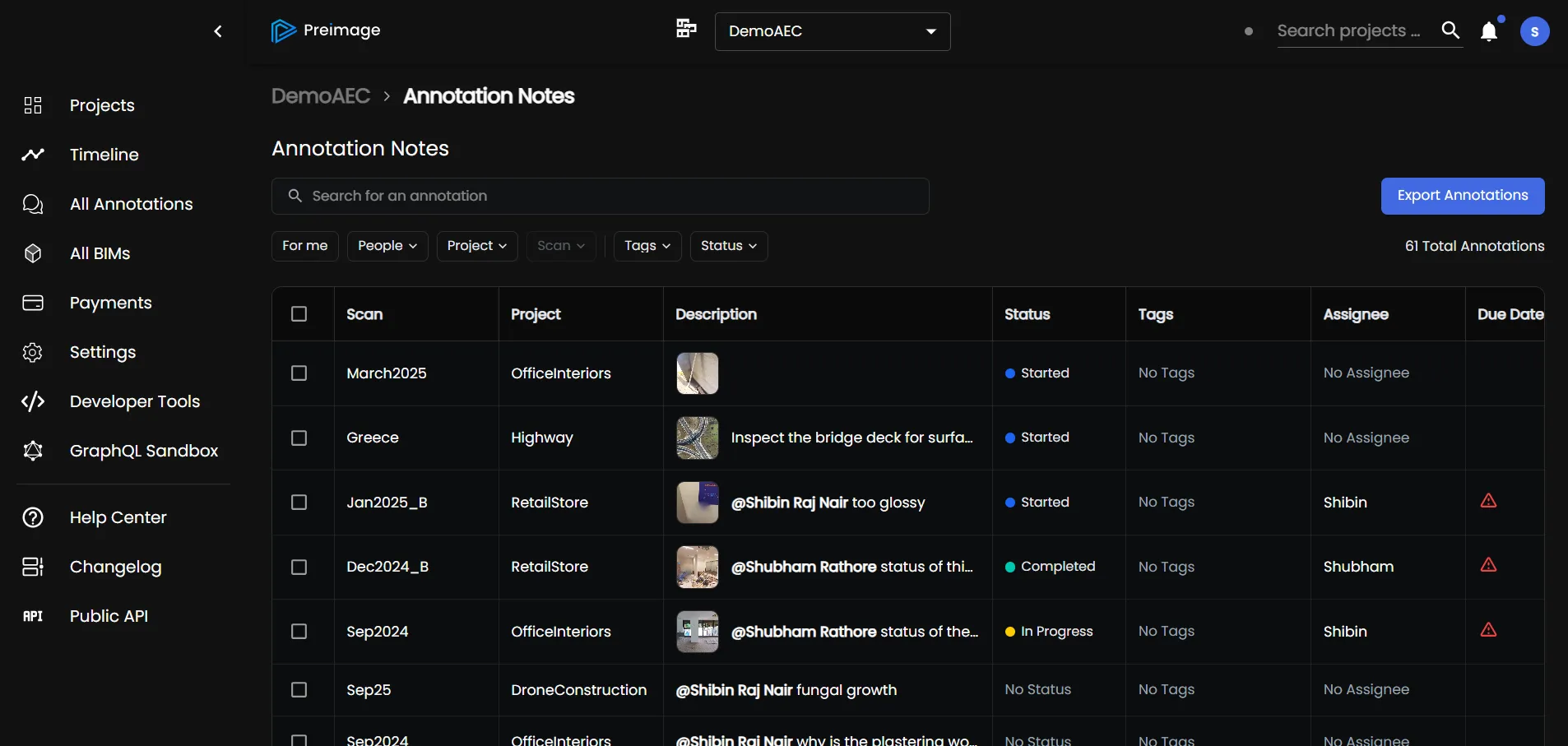
The Annotations Notes page in menu, provides a list of annotations, allowing you to review and manage them without opening each location in the Viewer.
The table displays information such as annotation descriptions, status, assignees, due dates, and other relevant details.
Searching and Filtering Annotations
You can search for specific annotations using the search bar or apply filters to narrow down the list.
Available filters include:
- For Me
- Creator
- Sheets
- Zones
- Tags
- Status
- Assignee
- Date Created
You can combine filters to find annotations that match your requirements or use Clear All to remove the applied filters.
Reviewing Annotation Details
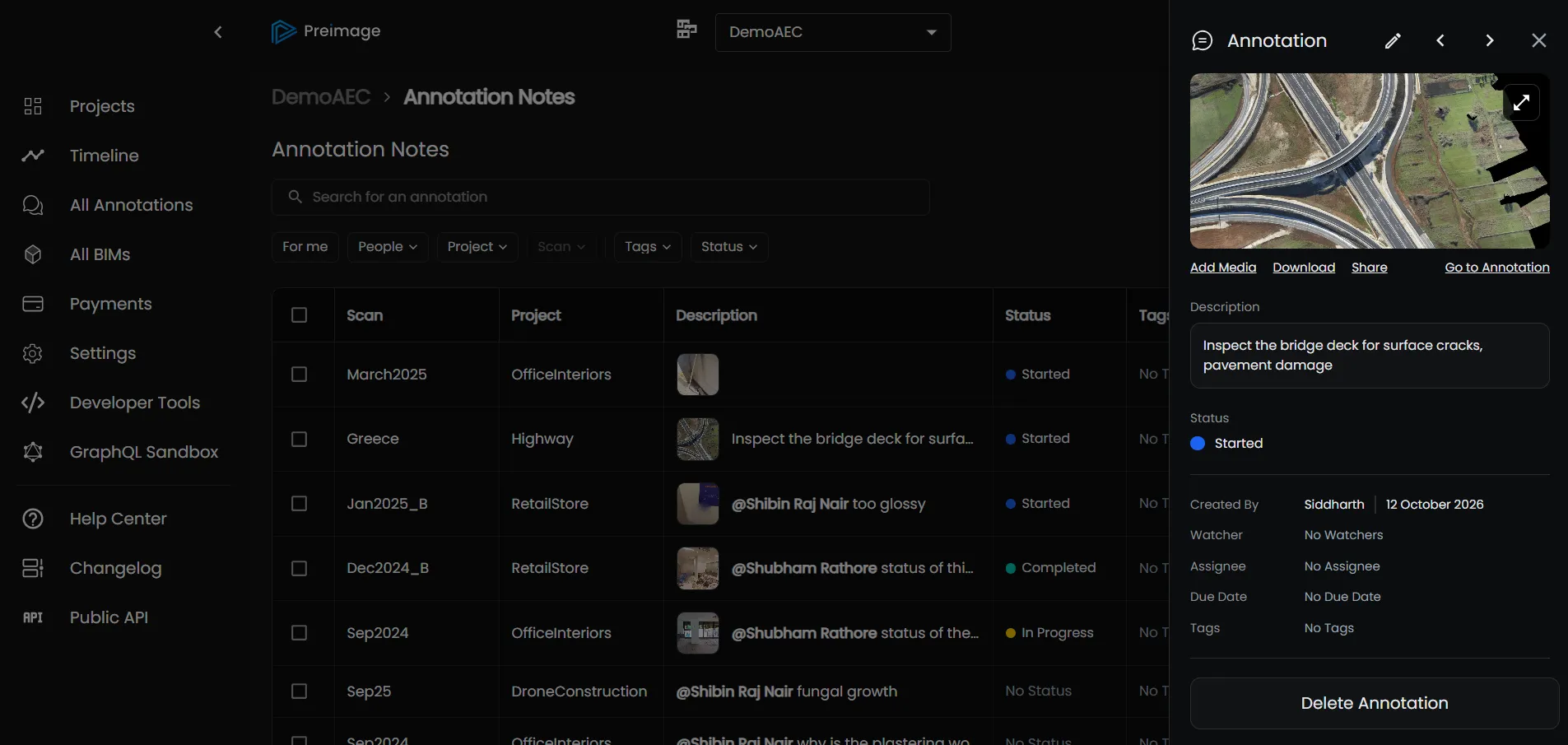
Select an annotation from the table to open its details in the Info Panel.
From here, you can review its information, update the annotation, manage assignments, and view attached files.
Exporting Annotations
You can also export annotation information using the Export Annotation option on the Annotations Notes page.