

AI Insights and Scene Understanding
Preimage uses AI to identify and classify different elements within your Point Cloud, such as walls, floors, ceilings, columns, and other objects.
You can view these classifications using different colors and filter specific elements to inspect them separately.
Accessing Segmentation
To view segmentation in your Point Cloud:
- Open the Layers panel.
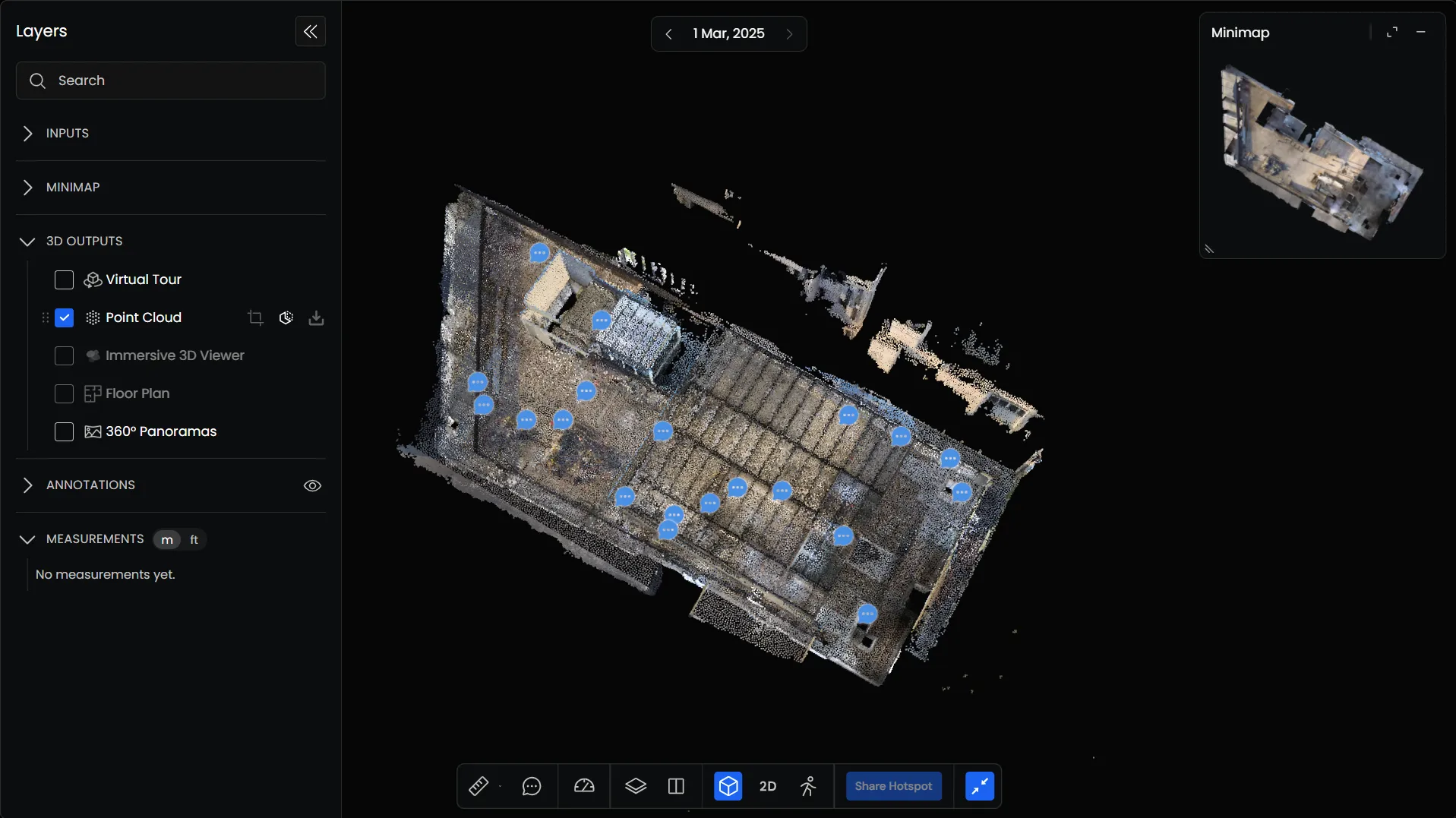
- Under 3D Outputs, enable Point Cloud.
- Click the Segmentation icon in the Point Cloud layer.
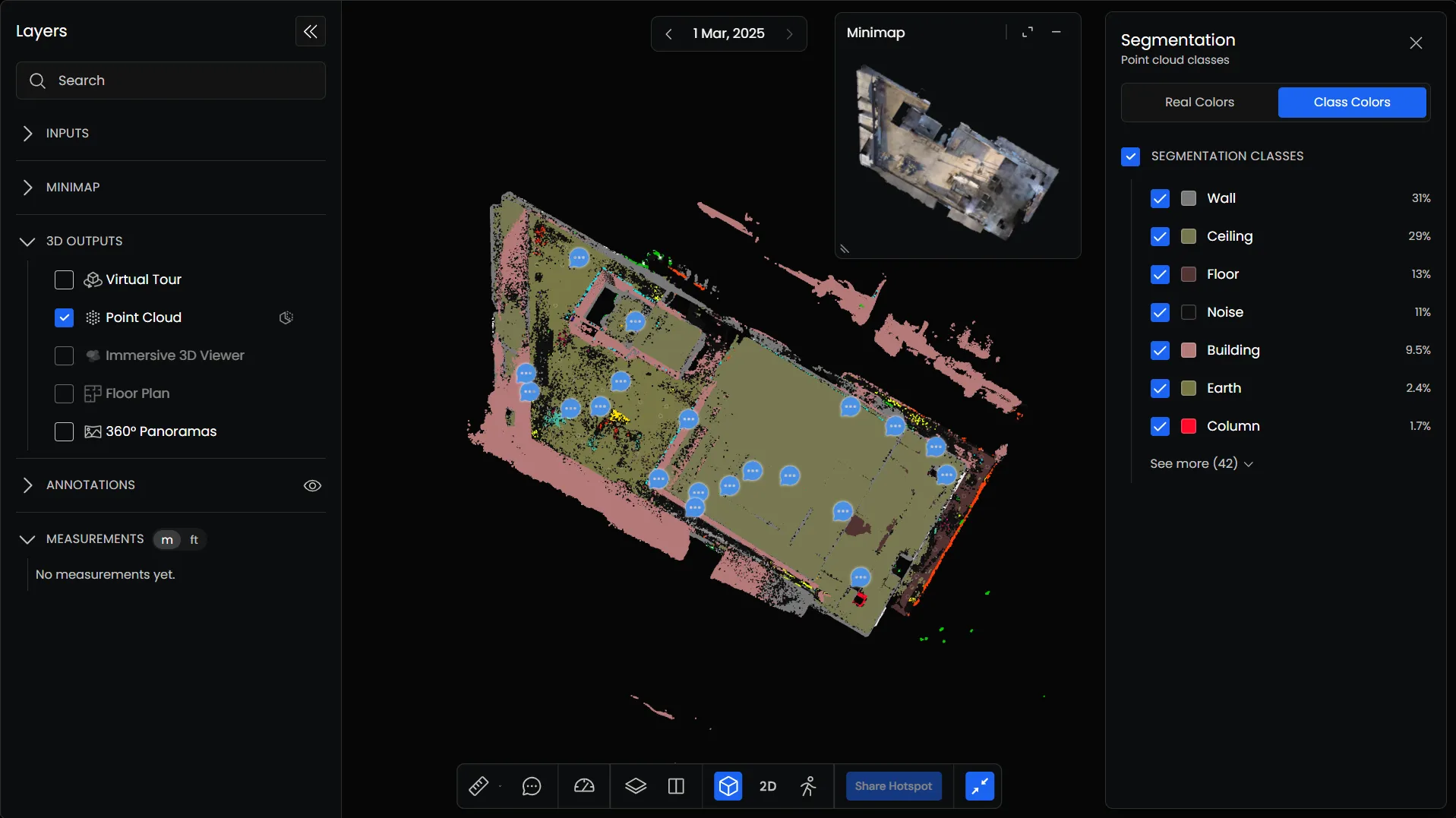
- The Segmentation panel opens on the right side of the Viewer.
Viewing Segmented Elements
The Segmentation panel provides two viewing options:
- Real Colors: Displays the Point Cloud in its original colors.
- Class Colors: Displays the Point Cloud using different colors for each classified element.
Select Class Colors to view the segmented Point Cloud.
Each class is assigned a color, making it easier to distinguish between different elements in the model.
Filtering Segmentation Classes
The Segmentation Classes section lists the identified elements in your Point Cloud, along with their assigned colors and percentages.
You can choose which classes to display using the checkboxes beside them.
To filter elements:
- Select Class Colors.
- Uncheck the classes you want to hide.
- Keep the classes you want to inspect selected.