

Construction Progress Tracking
Preimage lets you track construction progress by viewing and comparing scans captured at different stages of your project. Each scan provides a record of the site’s condition on a particular date, allowing you to review changes over time.
Comparing Scans Across Dates
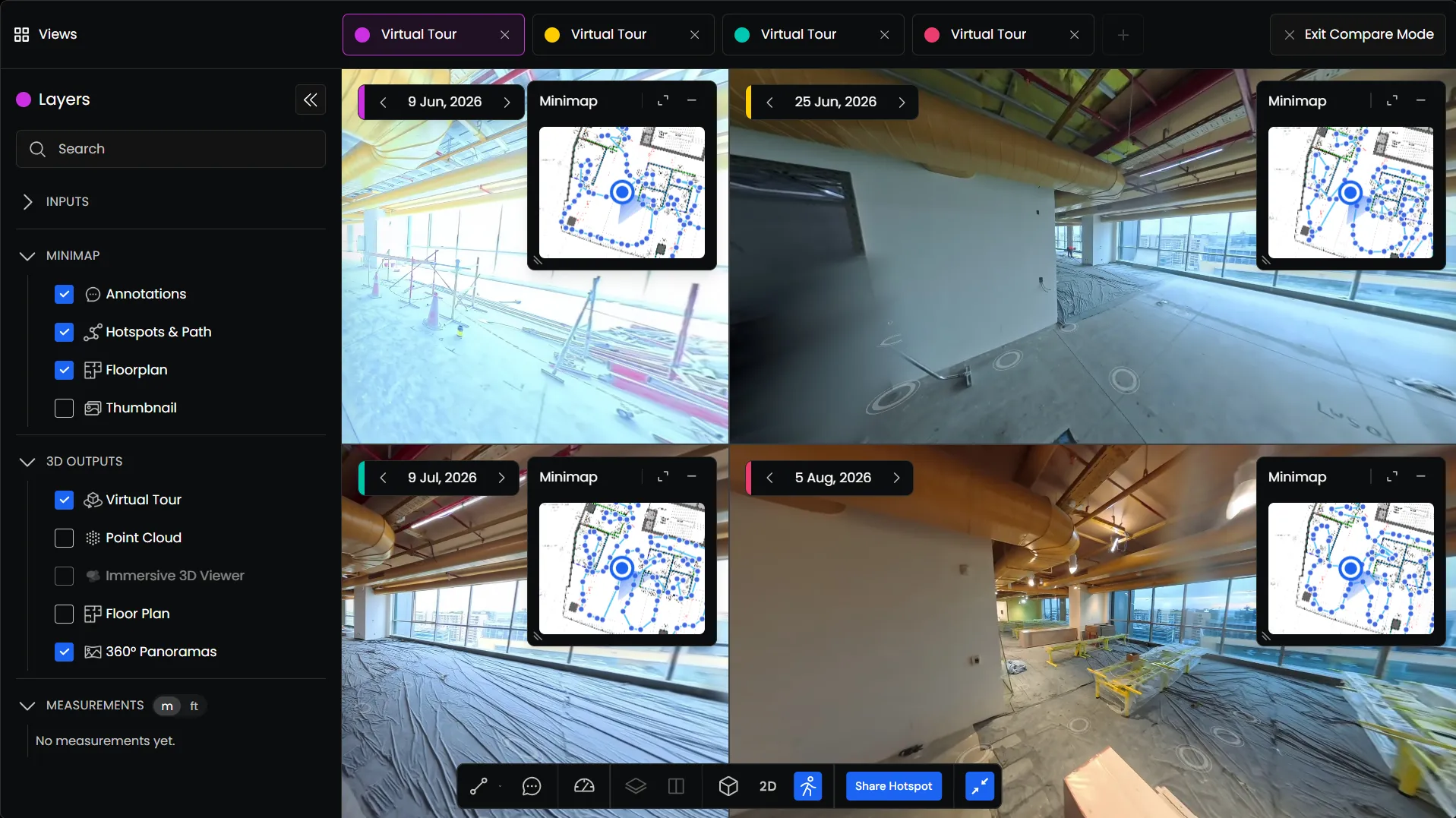
You can use Compare Mode to view scans from different dates side by side.
To compare scans:
- Open your site in the Preimage Viewer.
- Click the Compare icon to enter Compare Mode.
- Click the + icon to add another view.
- Use the Date Selector in each view to choose the scan dates you want to compare.
You can open up to four views on desktop or two on phone/tablet layouts, each showing an available scan or output.
Reviewing Progress Across Scans
When multiple views are open, navigation is synchronized. As you move through one scan, the other views follow the corresponding location.
This helps you compare the same area across different dates to identify completed work, review installation progress, and see what has changed since the previous scan.
You can move through the site as you normally would, using the navigation controls or the Minimap.
Recording Site Observations
While reviewing progress, you can use Annotations to mark observations or issues at specific locations.
Add comments, assign team members, or attach supporting files to keep a record of what needs attention.
For more information, see Creating and Managing Annotations.
Automated progress and service reports
Where enabled for your workspace, automated progress outputs are delivered within 3 hours after upload is complete. Service outputs take 1–2 days on average. Confirm the requested report scope and review capture coverage when interpreting results.