

Exporting Reports
Request a report from a scan when the reporting feature is available in your workspace. Select the report that matches the review you need.
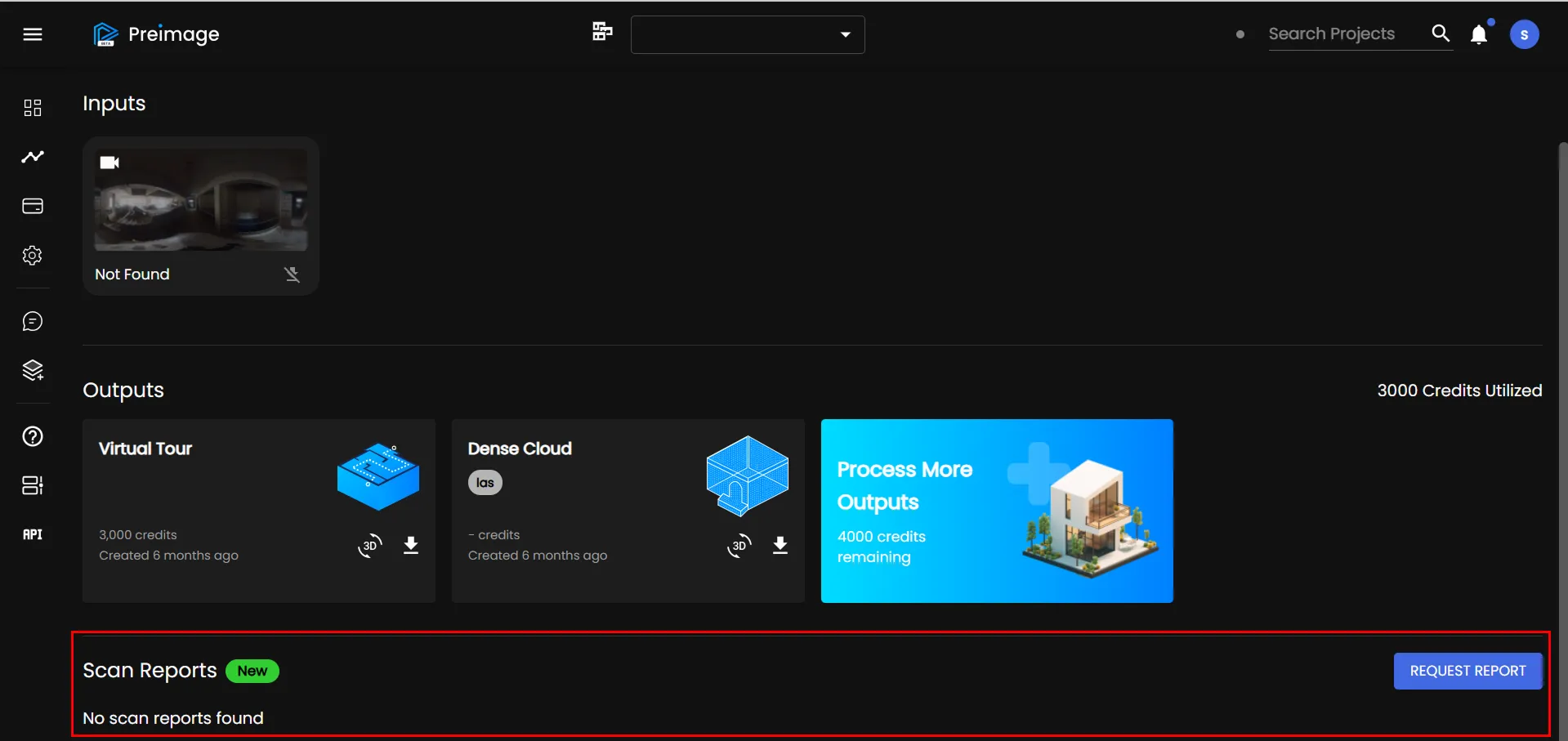
Request a report
- Open the project and select the scan.
- Select Request Report.
- Choose from the report types offered in the dialog.
- For Visual Progress, select an earlier scan for comparison.
- Submit the request and return to the scan to check its report status.
Report types
| Report | Review focus |
|---|---|
| Visual Defect | Visible site issues. |
| Visual Progress | Changes against a selected previous scan. |
| Segmentation | Classified elements in the scan. |
| Objects | Furniture and equipment. |
Use the options shown in the dialog for your scan. Reports depend on capture coverage and the requested scope; review their findings before acting on them.
Retrieve the report
Once the report is ready, open or download it from the scan’s report section. If a request is unavailable or needs investigation, send support the scan link and report type.
For a service report, delivery takes 1–2 days on average, subject to the agreed scope. For automated progress outputs, the automated delivery time is within 3 hours after upload.