

Navigating Workspaces, Projects and Scans
After logging in to the Preimage Mobile App, you can select a workspace, open its projects, and access the scans and annotations associated with them.
Selecting a Workspace
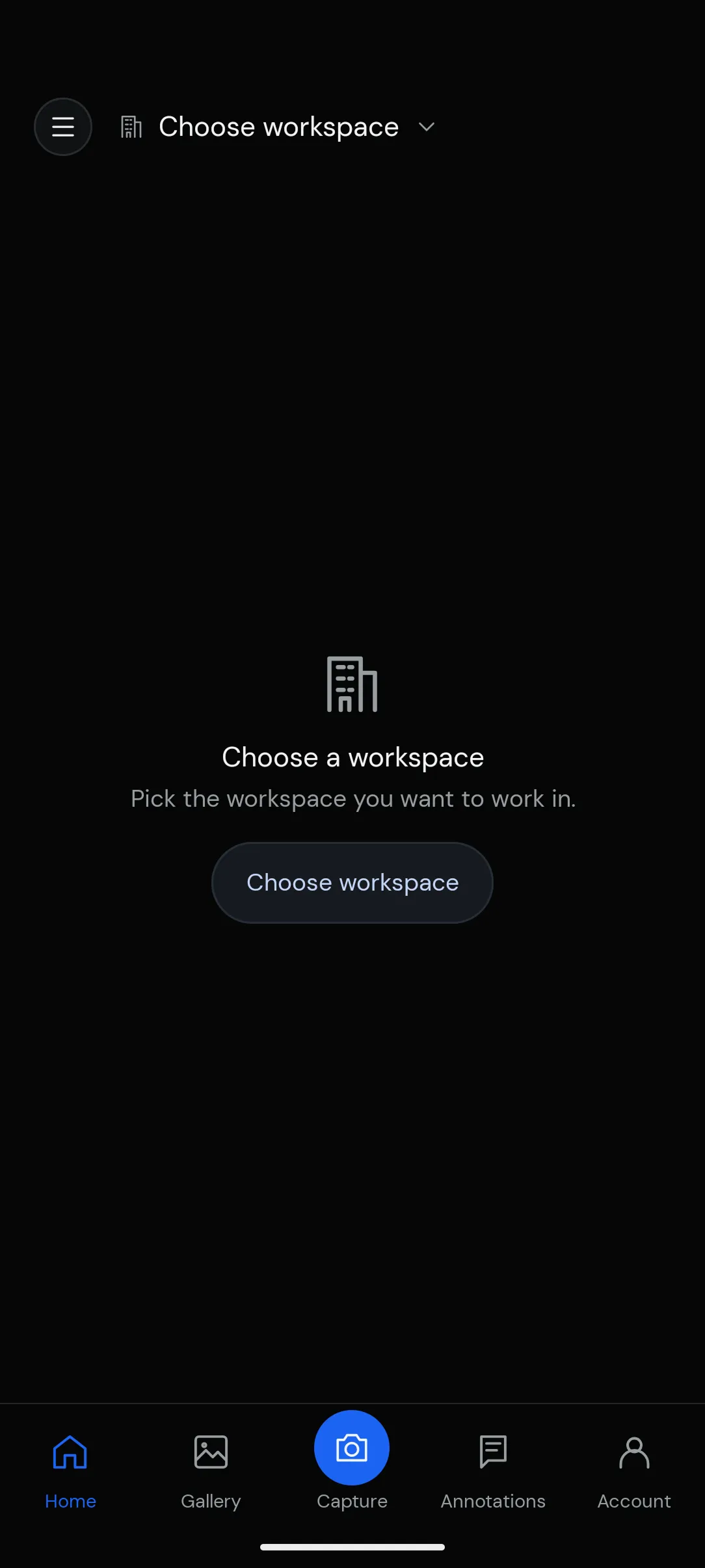
Once you log in, you’ll be asked to select a workspace.
Choose the workspace you want to access. You can switch between workspaces later using the workspace selector at the top of the Home screen.
Selecting a Project
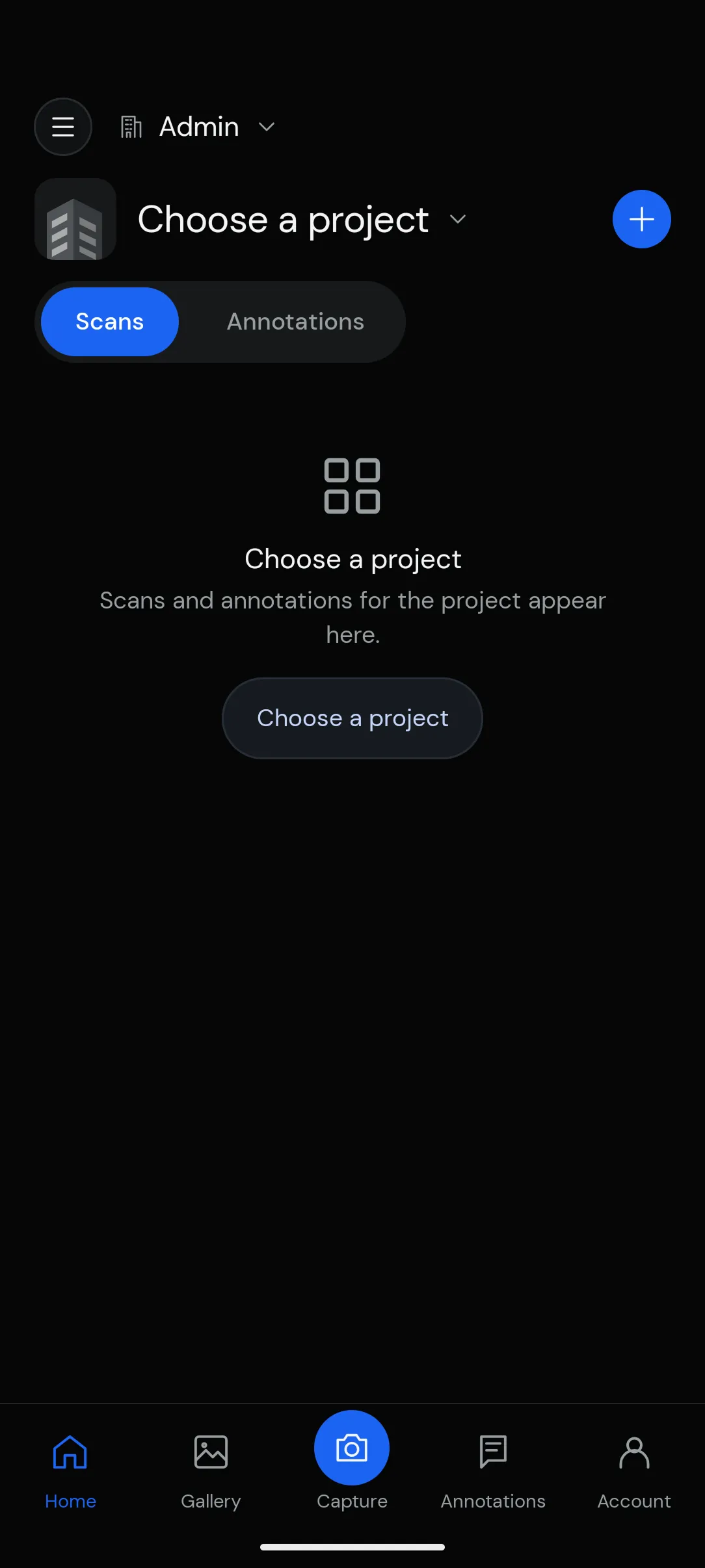
After selecting a workspace, choose the project you want to open.
Each workspace can contain multiple projects. Select a project to view its scans and annotations.
Viewing Scans and Annotations
Once you’ve selected a project, you can switch between the Scans and Annotations tabs.
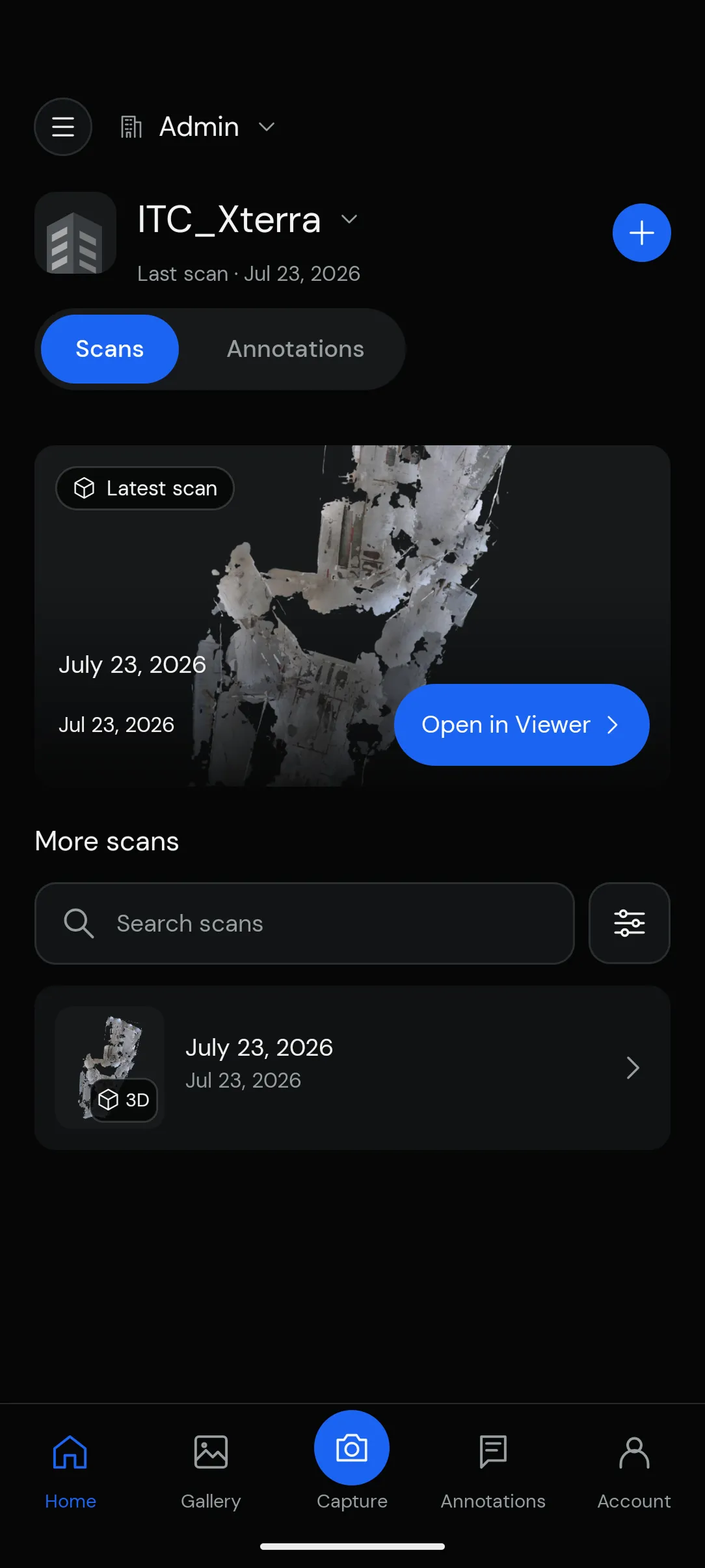
- Scans: View the latest scan and previous scans, along with their dates and processing status. Tap a scan to open its details.
- Annotations: View the observations and issues associated with the selected project.
You can also search, sort, and filter scans to find a specific capture.