

Connecting Your Camera and Recording
The Preimage Mobile App allows you to connect an Insta360 X3, X4, X5, or ONE RS camera and record your site from your phone.
You can capture recordings without an internet connection and upload them later for processing.
Connecting Your Camera
Before connecting, make sure your camera is turned on and has sufficient battery and storage.
To connect your camera:
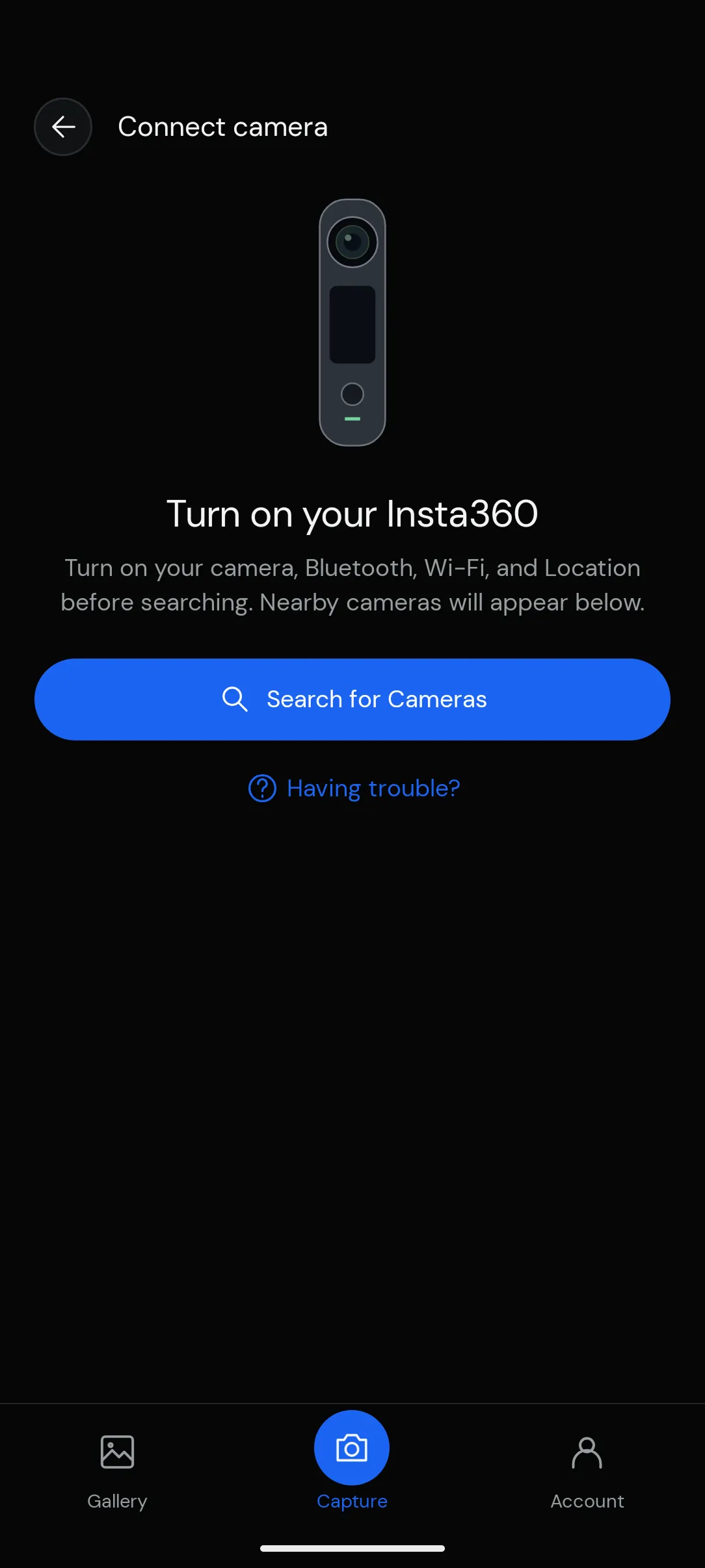
- Open Capture from the bottom navigation bar.
- Enable Bluetooth, Wi-Fi, and Location on your phone.
- Tap Search for Cameras.
- Select your camera from the available devices.
- Follow the instructions to complete the connection.
Once connected, you can access the camera’s recording controls.
Recording Your Site
Once your camera is connected, use the recording controls in the app to start capturing.
Walk through the areas you want to capture, keeping the camera steady and ensuring the required spaces are covered.
When you’ve finished, stop the recording using the available controls.
Accessing Your Recordings
After recording, transfer the footage to your phone if needed.
You can access recordings saved on your device through the Gallery tab.
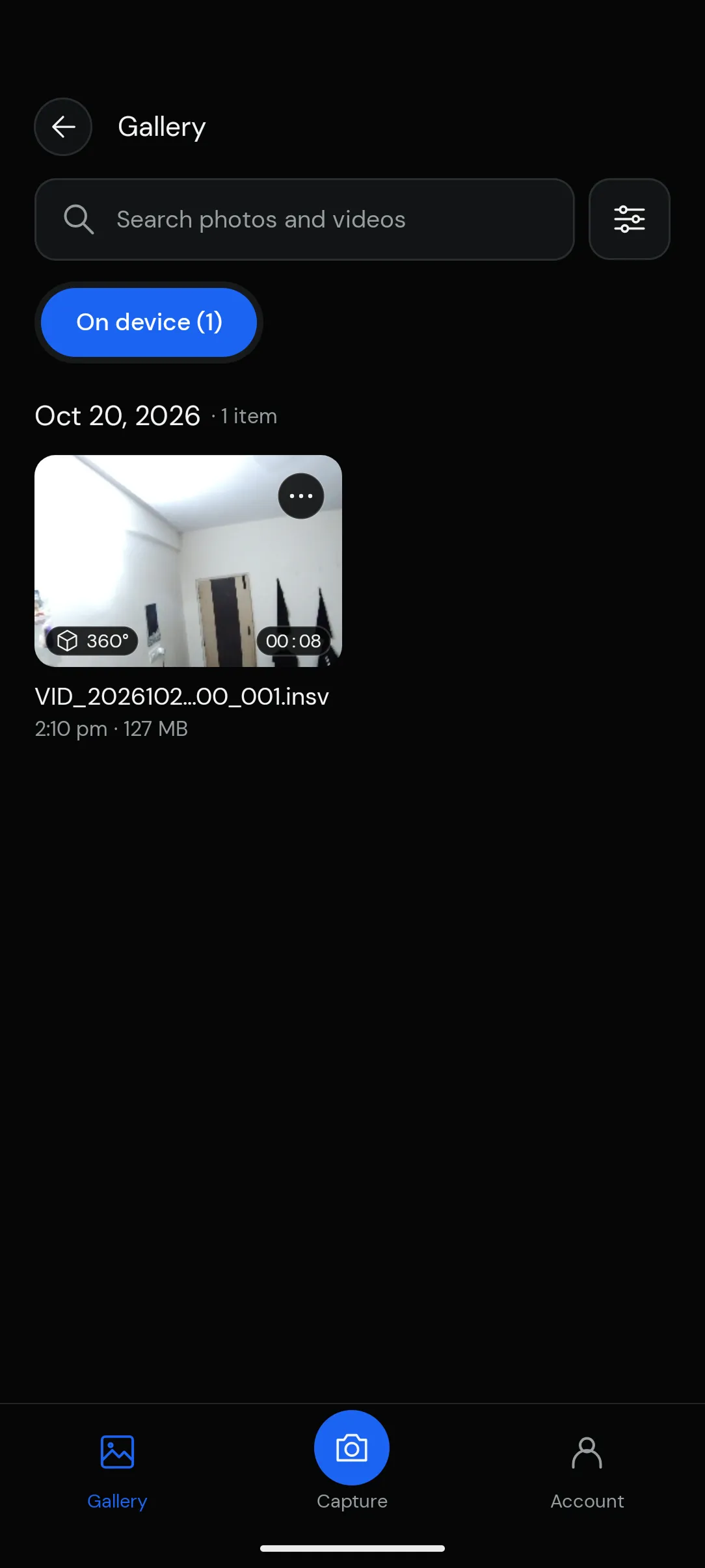
Once your recordings are available on your phone, you can select them to create a new scan.
Troubleshooting Camera Connection
If your camera doesn’t appear when searching:
- Make sure the camera is turned on and nearby.
- Check that Bluetooth, Wi-Fi, and Location are enabled.
- Ensure the app has the required permissions.
- Tap Search for Cameras again.
You can also select Having trouble? on the camera connection screen for additional help.
Note: An internet connection is not required for recording. However, you’ll need an internet connection to upload recordings for processing.